

Welcome to DonorMagic. This is a FREE cloud-based system that allows you to track donations for your organization.
You can set up campaigns, set targets, and track money raised against those campaigns. It allows you to see donors lifetime giving.
It uses simple forms and a portal system to allow you to quickly enter details and easily see where you stand for your donation goals.
We are adding new features throughout the year. If you have any suggestions, send them to Gary @ geoetc.com.
(if you are looking for simple form-driven solutions like this for your organization to track events, equipment, finances or more, drop us a note).
Your information and data are safe. No one but you can see the data *.
How it works
It is simple!
- Join DonorMagic – sign up with your details. Your Organization name will be your user name and you will be asked to create a password.
- Login to the DonorMagic Portal using those details.
You can now start adding your donation details.
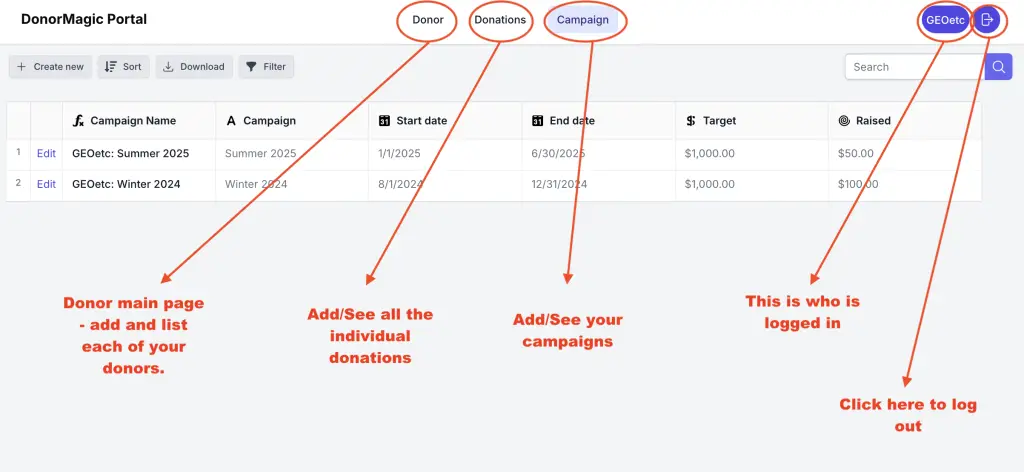
A. click on the Campaign tab at the top and add a campaign details by clicking on the “Create new’ button. The Campaign email text is the body of the email that you can send by checking a box when someone donates. See below for details . When you first sign up, a ‘General Donation campaign is already created. You can edit its details to suit.
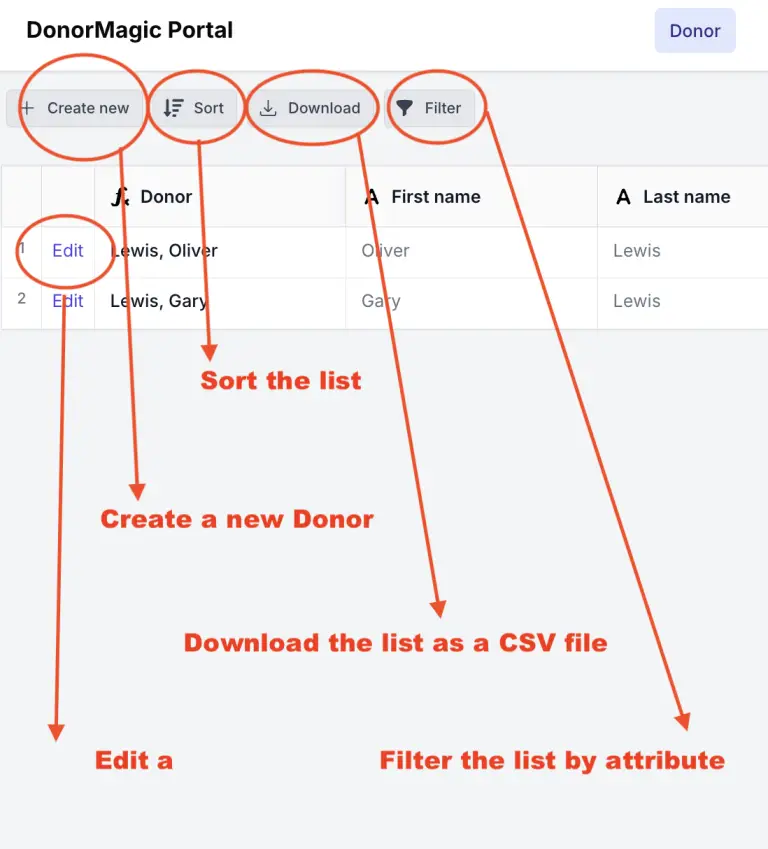
B. When a donation comes in, if the person is a new donor, click on the Donor tab, click ‘Create new” and enter their details. If they have donated before and are in the system, click on the Donations Tab then Create New…select the Donor, the Campaign and enter the details
The system will update the amounts each donor has given the donor tab and campaign tab. In some computer set ups you may have to do a screen refresh to see the updates.
Campaign emails
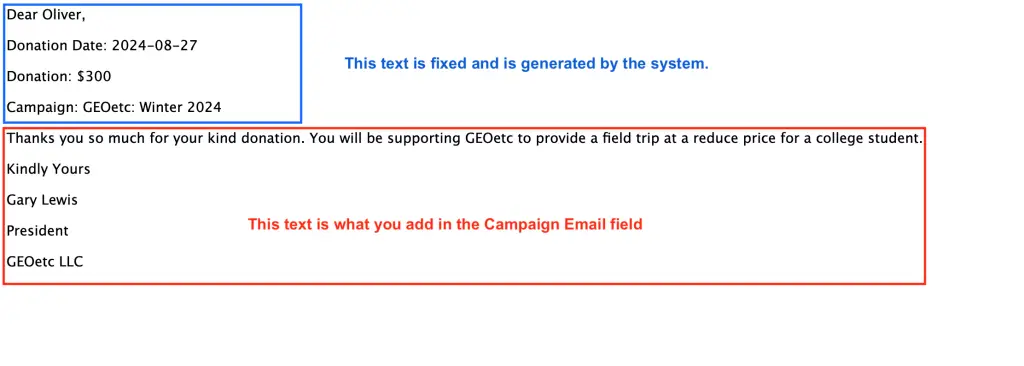
You can use the system to send a simple emial to someone who donates. This email is made up of two sections. The top text is fixed and pulls information from your entry in the donations tab.
The second box is text you add for each campaign. You can add simple formatting to this text such as line returns etc.
How to send an email
The box to click to send an email is on the Donations form when you create a new donation. Just know when you click that box the email is sent…you can;t take the email back. You will be sent a cc of the same email.
- Please note that we do not guarantee your data. You must ensure you arrange backups by downloading CSV files of your donors, donations, and campaigns. This is a free service and therefore we are not responsible for loss of data, service outages etc.